
You have been able to login into your new mailbox, now, here is how to setup stackmail account on Gmail app.
This will not only make logging into your mailbox easier but also let you have access to your mailbox at your fingertips.
You can always send and respond to your emails even when you are far away from your office or your computer. Thanks to the Gmail App.
To link your mailbox to the Gmail App, follow the steps below:
Step #1: Launch The Gmail App
On your phone, open the Gmail App, then select the option to Add another account.
You will be taken to a screen that looks like this:
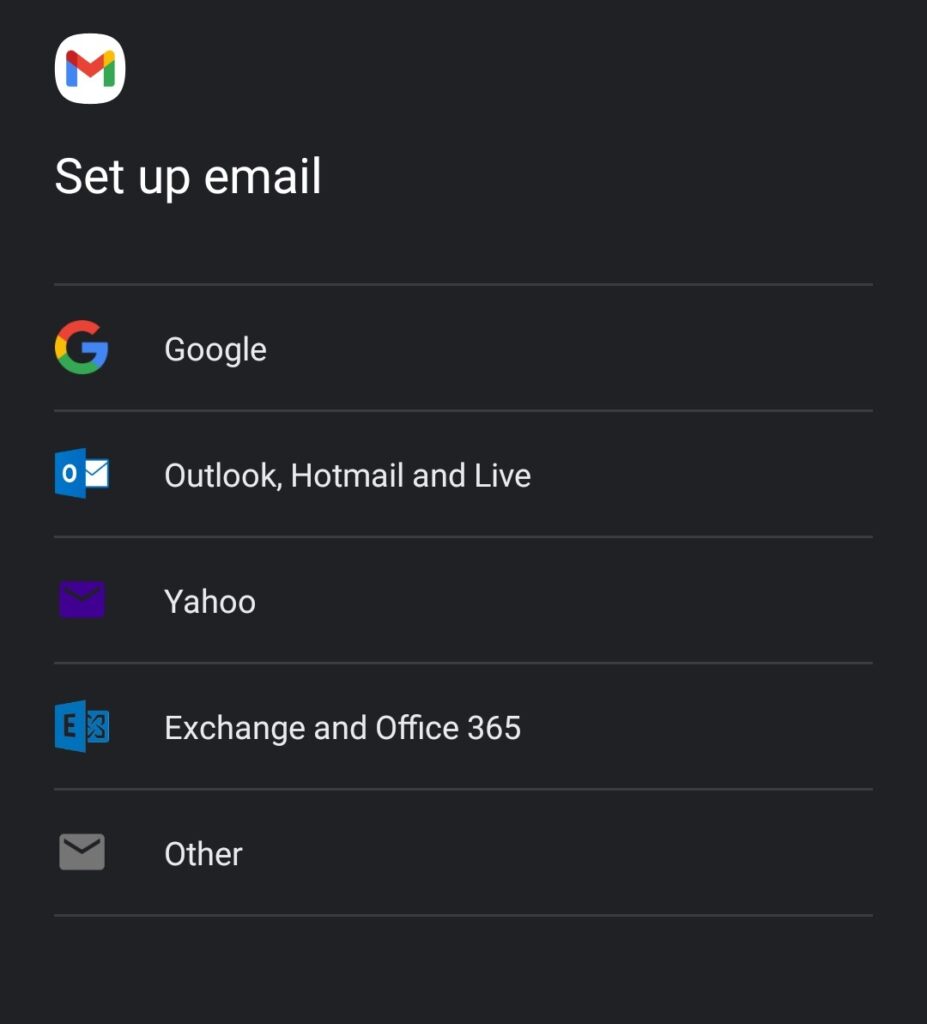
Select the last option, “Other”.
Step #2: Add your email address
At this stage, you will be required to enter your new email address.
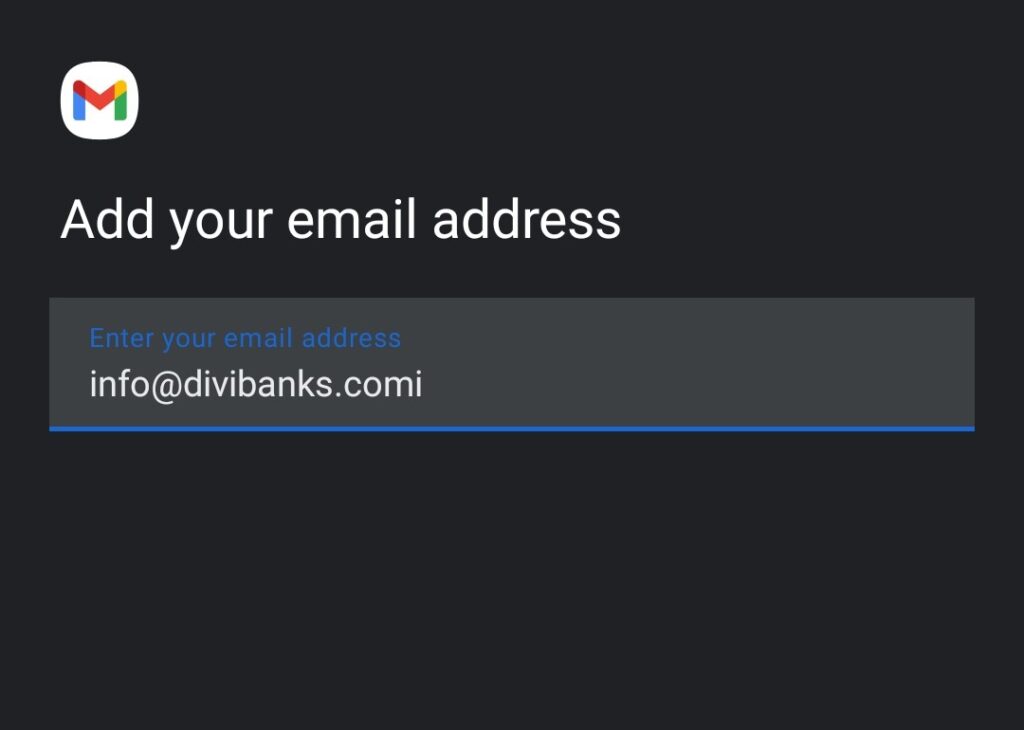
For example, my email address is info@divibanks.com. That’s exactly what I will add as my email address, then click NEXT.
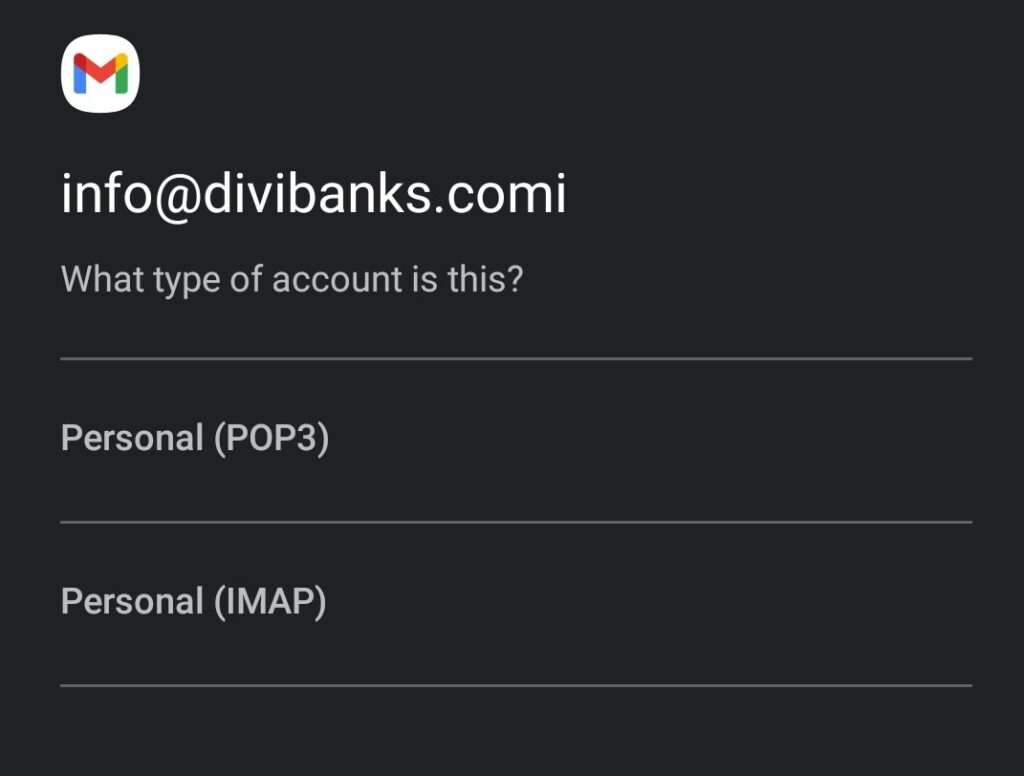
Step #3: Choose the type of the account
Here, choose Personal (IMAP).
You will then be taken to a screen where you will be asked to enter your password.
Make sure that you enter the right password for your email id. Then, click NEXT.
Step #4: Incoming server settings
At this stage, make sure that the username is your email id, and that the password is the right one.
As for the server, replace whatever is in the space with imap.stackmail.com
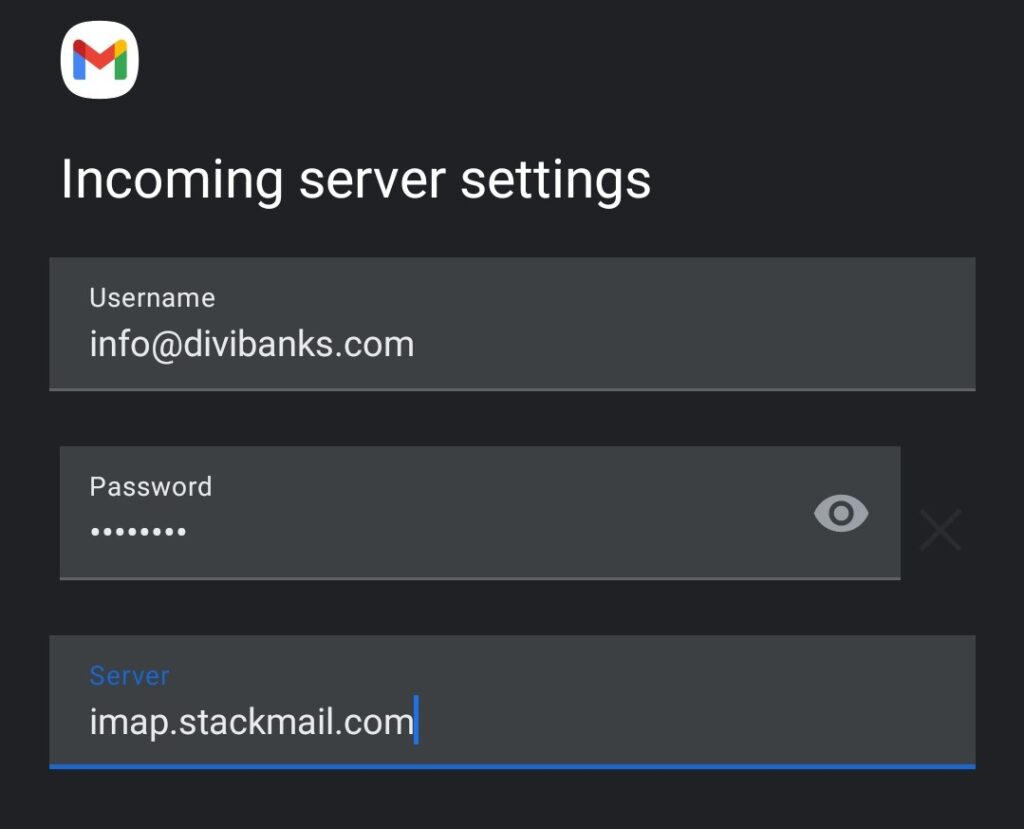
Click on NEXT.
Step #5: Outgoing server settings
Just like in the previous stage, make sure that the username is the email id, and the password is the right one.
For the SMTP server, set it to smtp.stackmail.com
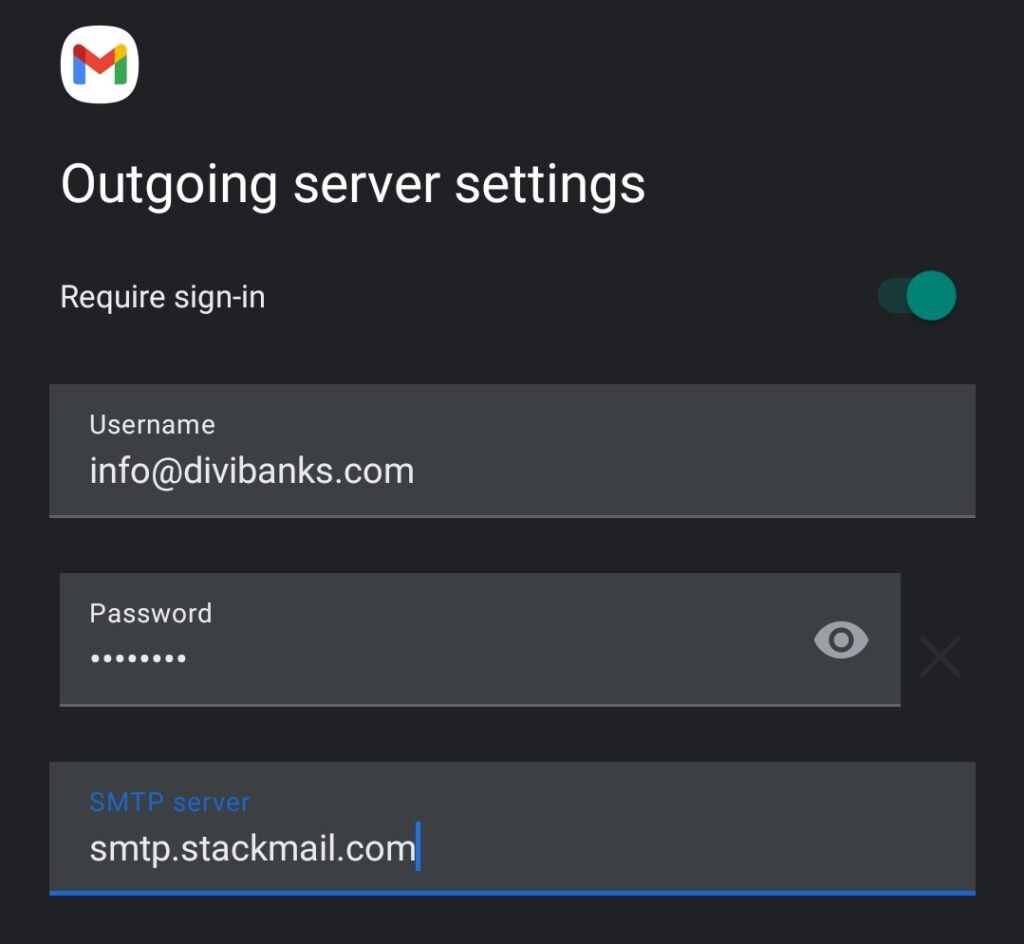
Click on NEXT.
Step #6: Account options
Here, you can enable settings like if you want to be notified if an email arrives, the frequency of email syncing, etc.
Once you are done, click on NEXT.
Step #7: Setting Up Account Name
How would you like your email to be displayed to your recipients? Would you like them to see, and easily identify the sender from their inboxes?
You can do that by setting up your account name on this last step.
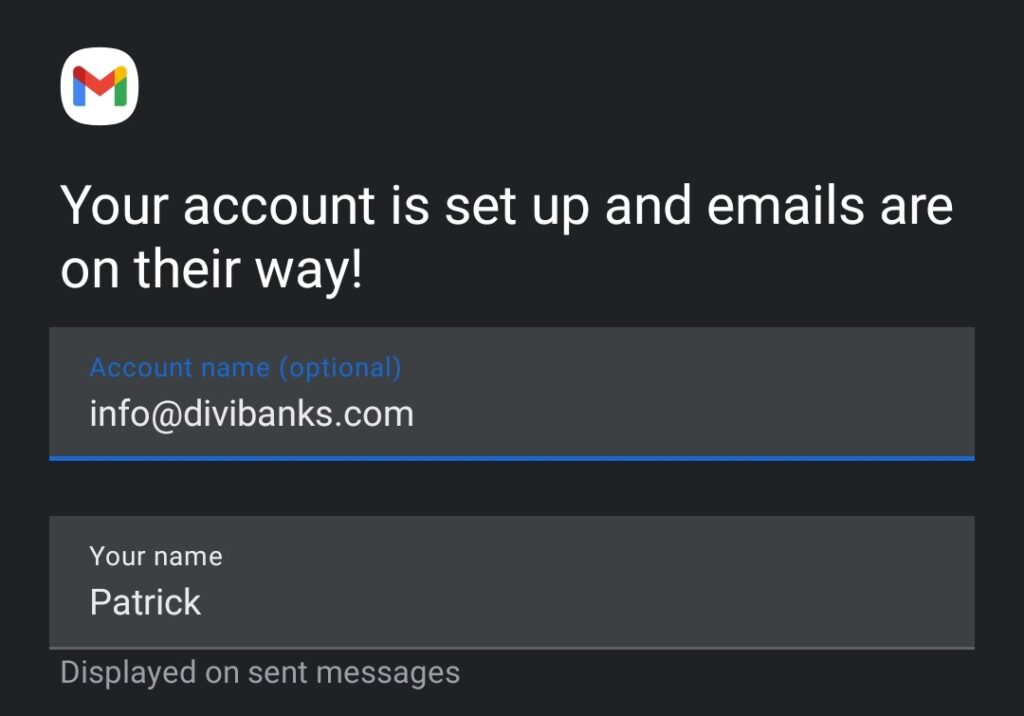
Once you are done, click on NEXT.
Then, click on the profile icon at the top right corner of the Gmail app to see if the new mailbox has been added,
Well, that’s it.
If you run into any problems, do not hesitate to get in touch.

Hi, setup of stackmail account on gmail app on iPad and iPhone works fine but pdf attachments can’t be read.
I have a gmail account on the same app which can read pdf.
Any suggestions?
Hello,
Do you have a PDF reader app installed on either of the devices? For you to be able to read any PDF attachment, you must ensure that you have a PDF reader app installed on your device. You could try Adobe PDF Reader, WPS, or even One Drive. Try these and let me know how it goes.
Also, just having a Gmail account on the same app isn’t enough. You must at least have a pdf reader/viewer installed. Google Drive comes with one. If you have Google Drive installed, then it should just work fine.
Thanks Patrick – just the job!
You are super welcome. 😍